

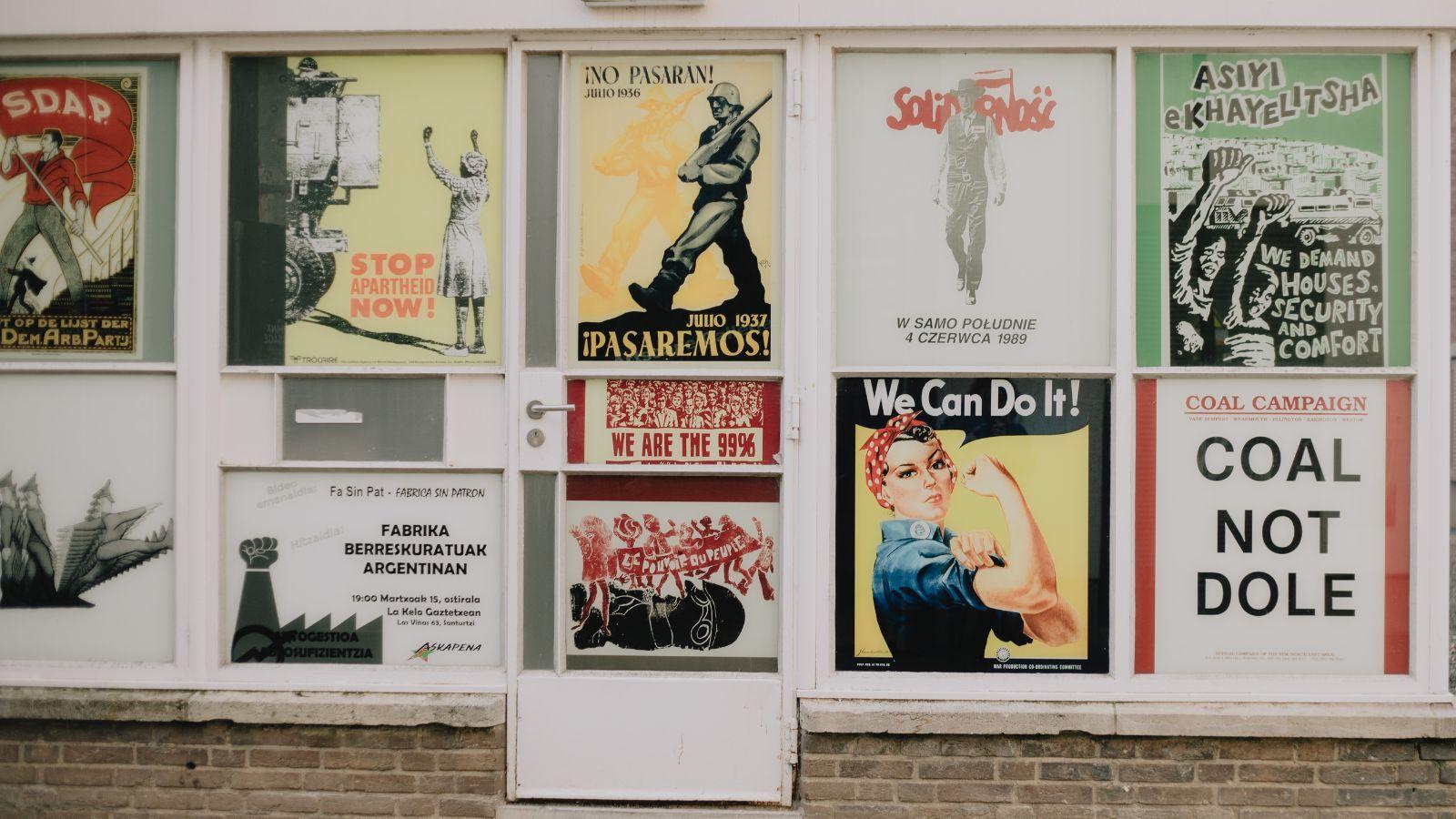

Posters remain one of the most adaptable visual formats for events, school functions, community announcements, retail promotions, and personal celebrations. In 2026, print-on-demand platforms make it possible to design and order professional-looking posters without formal design training or specialized software.
This guide is written for individuals and small teams who want a clear, repeatable workflow. Instead of focusing on creative theory, it emphasizes decision checkpoints: defining purpose, structuring information, preparing files correctly, and confirming print settings before ordering.
Tools in the print-on-demand posters category typically combine browser-based design editors with export presets optimized for printing. For example, creating a printable poster using Adobe Express allows users to start with pre-sized canvases and structured templates that reduce technical setup errors while keeping output suitable for professional printing.
The steps below walk through how to move from concept to printed poster efficiently, with attention to layout clarity, print quality, and distribution planning.
Step 1: Define Purpose, Audience, and Size
Goal
Clarify what the poster needs to achieve and select the correct dimensions before designing.
How to do it
- Identify the event or project type (e.g., workshop, birthday, product launch).
- Define the primary audience (students, customers, local community).
- Determine where the poster will be displayed (window, bulletin board, outdoor stand).
- Choose a standard size (e.g., 11×17 in, 18×24 in, A3, A2).
- Start with a preset template inside a browser editor.
What to watch for
- Oversized formats increase print cost.
- Small formats require simpler messaging.
- Outdoor posters may require heavier paper or lamination.
- Resizing after designing may distort layout.
Tool notes
If coordinating production timelines, project management tools such as Asana can help schedule design, proofing, and ordering steps.
Step 2: Select a Clear Layout Structure
Goal
Establish a visual hierarchy that guides attention from headline to detail.
How to do it
- Choose a template aligned with your use case (event, sale, art print).
- Identify three information levels: headline, key detail, supporting information.
- Position the most important message prominently.
- Align text blocks using grid guides.
- Leave generous margin space around edges.
What to watch for
- Too many competing text elements.
- Decorative fonts reducing readability.
- Misaligned spacing between sections.
- Text positioned too close to trim lines.
Tool notes
For teams collaborating remotely, platforms like Trello can track version approvals and layout revisions.
Step 3: Add Images and Supporting Visuals
Goal
Incorporate imagery that reinforces the message without overpowering it.
How to do it
- Upload high-resolution images (300 DPI recommended for print).
- Resize proportionally to avoid distortion.
- Apply overlays if text appears on a photo.
- Ensure branding elements are visible but balanced.
- Keep focal points away from trim edges.
What to watch for
- Pixelated low-resolution images.
- Overuse of stock graphics.
- Poor contrast between text and background.
- Cropped subjects near the border.
Tool notes
If sourcing licensed photography, platforms like Unsplash provide free high-resolution images for many non-commercial uses (check license terms before printing).
Step 4: Refine Typography and Readability
Goal
Ensure the poster is legible from a distance and visually consistent.
How to do it
- Limit to two or three font families.
- Make the headline significantly larger than body text.
- Adjust line spacing to prevent crowding.
- Use bold or color changes to highlight key details.
- Zoom out to simulate distance readability.
What to watch for
- Body text below 18–24 pt on larger posters.
- Excessive use of all caps.
- Inconsistent spacing between sections.
- Decorative effects that reduce clarity.
Tool notes
If checking color contrast for accessibility, tools such as WebAIM provide contrast evaluation resources online.
Step 5: Prepare the File for Print
Goal
Export a technically correct file for professional printing.
How to do it
- Confirm resolution is set to 300 DPI.
- Add bleed (typically 0.125 in or 3 mm) if required.
- Keep essential text within safe margins.
- Export as a high-quality PDF when possible.
- Review the file at 100% zoom before upload.
What to watch for
- Missing bleed causing white trim edges.
- RGB color shifts during print conversion.
- Fonts not embedded in exported file.
- Automatic resizing during upload.
Tool notes
If reviewing print specifications, services like Vistaprint publish file preparation guidelines that outline bleed, resolution, and margin standards.
Step 6: Upload to a Print-on-Demand Service
Goal
Submit the file correctly and select appropriate material options.
How to do it
- Upload the exported file to your chosen print provider.
- Select paper type (matte, glossy, heavyweight).
- Confirm final size matches your design.
- Review the digital proof carefully.
- Check shipping timeline against event date.
What to watch for
- Automatic scaling adjustments.
- Paper stock not suited for display environment.
- Long production timelines.
- Cropping discrepancies in preview.
Tool notes
Shipping carriers such as UPS offer tracking options that can help coordinate delivery timing.
Step 7: Coordinate Promotion and Distribution
Goal
Ensure the poster works alongside other communication channels.
How to do it
- Identify physical placement locations in advance.
- Share a digital version of the design online.
- Align messaging with email or event pages.
- Confirm that dates, URLs, or QR codes are accurate.
- Track engagement or attendance if relevant.
What to watch for
- Inconsistent messaging across channels.
- Late posting reducing visibility.
- Outdated information reused from old templates.
- QR codes not tested before print.
Tool notes
Social scheduling tools such as Hootsuite can coordinate digital promotion with physical poster rollout.
Common Workflow Variations
Photo-Focused Event Poster
Start with a full-bleed image and overlay minimal text. Prioritize resolution and contrast.
Minimal Typography Poster
Use strong headline hierarchy and generous white space for lectures or gallery events.
Promotional Retail Poster
Highlight pricing or discount figures prominently. Use bold contrast and simple layout.
Art Print or Decorative Poster
Prioritize color consistency and export as a high-resolution PDF. Consider premium paper stock.
Before You Start Checklist
Pre-Export / Pre-Order Checklist
Common Issues and Fixes
Blurry images in print
Replace with higher-resolution files or reduce image size.
Text cut off at edges
Increase margin spacing and confirm bleed settings.
Unexpected color differences
Test-print smaller versions when color accuracy is critical.
Crowded layout
Remove secondary details or direct viewers to a website for additional information.
Unreadable small text
Increase font size and simplify content.
How To Use Print-on-Demand Posters: FAQs
Should beginners use templates or start from scratch?
Templates help maintain structure and alignment. Beginners benefit from preset layouts.
When should the print provider be selected?
Choose dimensions early so layout decisions align with print constraints.
Can the same design be reused digitally?
Yes. Export a web-sized version and ensure readability at smaller resolutions.
What is the best file format for printing?
High-resolution PDFs are typically preferred for consistent output.
How much text should a poster include?
Keep messaging concise. Prioritize clarity and visibility over density.